Set up Neovim for Lean
Lean is written in constant conversation with the compiler, and the pane that shows that conversation is called the infoview. Without it we are working blind, so an editor plugin is the one piece of setup that is not optional. This page covers Neovim; Set up VS Code for Lean covers the other common choice.
We use lean.nvim. It has no plugin
dependencies, and on Neovim 0.11 or later it registers the language server
through the built-in vim.lsp API, so nvim-lspconfig is not required
either.
The language server itself, leanls, needs no installation. It ships with the
toolchain that elan manages, and the plugin launches it as lake serve
inside a project. If Mason manages other language servers, note that Lean does
not belong in its ensure_installed list.
Installation
Which version to install depends on the version of Neovim. The main branch
supports the latest stable release, currently 0.12.x, and there are tags for
older ones: nvim-0.11 and nvim-0.10. Check with nvim --version first.
With packer, on Neovim 0.11:
With lazy.nvim:
{
  'Julian/lean.nvim',
  event = { 'BufReadPre *.lean', 'BufNewFile *.lean' },
  opts = { mappings = true },
}
On Neovim 0.12 a plugin manager is not needed at all:
Whichever route we take, we call the setup function once:
local status, lean = pcall(require, "lean")
if not status then
    return
end

lean.setup({
    mappings = true,
})
Then confirm the pieces are in place:
A healthy report says that Neovim is new enough and that lake is runnable. If
it cannot find lake, ~/.elan/bin is missing from the PATH.
What the infoview shows
The infoview follows the text cursor and redraws as it moves, in normal mode and
in insert mode alike. lean.nvim renders exactly the messages at the cursor,
and nothing else. Each is labelled with the range in the source it came from, so
a #check on line 6 appears as:
In a full editor, with the file from chapter 1 of the tutorial open and the
cursor on line 6, that looks as follows. The I in the left margin marks the
lines that carry an informational message.

Move the cursor to a line Lean has no message for and the pane goes empty. That is expected, not a fault.
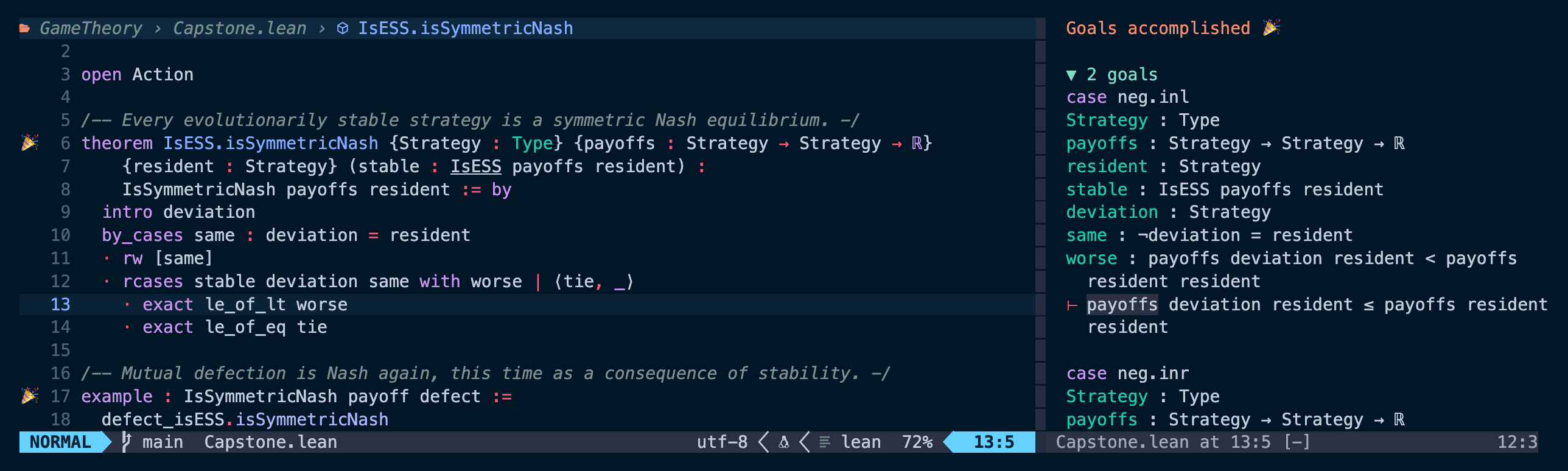
Inside a proof the infoview shows the goals instead. Here the cursor is on
line 13 of the capstone from chapter 6, just after rcases has split the
proof in two. The first goal, case neg.inl, has worse in its context, and
the second is below it. The 🎉 in the margin marks declarations whose proofs
are complete.
Key mappings
No key press is needed to make the infoview appear. It opens by itself in a
split whenever a .lean file inside a project is opened, and closes with the
file. The mappings below are for steering it once it is there.
Setting mappings = true enables the suggested ones, all prefixed with
<LocalLeader>. Unless maplocalleader has been set, that is a backslash, and
that is what we write here.
| Key | Does |
|---|---|
\i |
Toggle the infoview, for when the split is in the way |
\<Tab> |
Jump into the infoview window, to scroll it |
K |
Hover: show the documentation for the name under the cursor |
\x |
Pin the current goal in place |
\c |
Clear all pins |
\r |
Restart the Lean server for this file |
\s |
Accept the first suggestion the infoview is offering |
\\ |
Ask which abbreviation would type the symbol under the cursor |
A pin freezes a goal in the pane so that it stays visible while the cursor moves elsewhere. This is the way to compare the goal before a tactic with the goal after it, and it is worth learning early.
\r is the one to reach for when the infoview stops responding or reports
something that is clearly stale. Restarting the file is cheap and fixes almost
every case of a confused server.
The same actions are available as commands, which is often easier to
remember: :LeanInfoviewToggle, :LeanGoal, :LeanTermGoal and
:LeanRestartFile.
Unicode input
In insert mode, a backslash starts an abbreviation and the expansion happens as we type. The ones that come up constantly in these notes are:
| Type | Get | Type | Get |
|---|---|---|---|
\R |
ℝ | \to |
→ |
\N |
ℕ | \le |
≤ |
\sum |
∑ | \ne |
≠ |
\in |
∈ | \and |
∧ |
\all |
∀ | \or |
∨ |
\a |
α | \ma |
↦ |
Most have several spellings, so \forall works as well as \all. When we meet
a symbol and cannot guess how to type it, we put the cursor on it and press
\\, or run :LeanAbbreviationsReverseLookup, which lists the abbreviations
that would have produced it.
A final check
Open any .lean file inside a project with a lakefile.toml and wait a moment
for the server to start. The infoview should appear in a split, showing the
file's own output as the cursor moves. If nothing happens, the two usual causes
are that ~/.elan/bin is not on the PATH, or that the file is a loose one
outside a project directory.